
9 Best Free Video-to-Text Tools (Fast Captions Included)
Explore the best free video-to-text tools for creators, focusing on fast captions, export formats, and plan limitations. Perfect for efficient content creation.

DeepScribe Team
Content Team
9 Best Free Video-to-Text Tools (Fast Captions Included)
Are you tired of hitting snags with free video-to-text tools that promise captions but leave you stuck? Many creators, whether YouTube enthusiasts, solo marketers, or podcast editors, find themselves with transcripts that don't export in the needed SRT/VTT format. Perhaps you’ve faced hidden limits on minutes or struggled to support multiple languages. It’s time to cut through these frustrations with a curated list of free tools that genuinely deliver on the promise of easy captioning.
In this guide, we evaluate these tools based on their true bottlenecks: time limits, session caps, language support, and crucially, whether they allow you to export your captions without hassle. From Google Live Transcribe’s unlimited model to Scripsy’s YouTube-focused approach, we’ll map out the best tools for your workflow. DeepScribe also deserves a special mention as a robust transcript-to-caption pipeline, seamlessly transitioning between formats to meet your needs.
Dive in to discover your fastest path to export-ready captions today!
Introduction: The Fast Path to Captions
Creating compelling videos is only half the battle; getting them captioned efficiently is the other. With free video to text tools, creators can transform their content into accessible formats without breaking the bank. But not all tools are created equal. Many come with hidden constraints like time limits that cap productivity prematurely or export features that don’t meet professional needs. Let’s break it down so you can find the best tools to help your workflow without frustration.
Imagine uploading your latest vlog only to discover that the free tool you’re using caps transcription sessions at 30 minutes, leaving you scrambling for alternatives mid-task. Tools like Otter.ai provide up to 300 minutes monthly, but these are divided into 30-minute bites, affecting long-form videos. 
Exporting captions also becomes a bottleneck. Not all tools support common formats like SRT or VTT, essential for seamless integration with YouTube or professional editing software. With Google Live Transcribe, for instance, you enjoy unlimited transcription time but must consider battery life as a constraint. This option is excellent for immediate, on-the-go notes on Android devices, especially when taking quick clips for social media. Meanwhile, Scripsy shines if you’re working with YouTube, offering limitless transcriptions for YouTube videos, thus bypassing the peril of uploading limits.

The key is matching these tools to your specific workflow: Are you looking for a transcription solution that provides captions for YouTube, or do you need something that excels in Zoom meetings? Each free tool’s nuances, like session caps and language support, map perfectly to different creator needs. And if exporting is crucial, pay attention to which tools offer direct SRT/VTT outputs. In this post, we’ve made it simple by analyzing the real-world constraints and guiding you toward the best fit.
How We Ranked These Free Video-to-Text Tools
When it comes to ranking free video-to-text tools, we prioritize what truly matters to creators: time limits, session caps, language support, and export options. Let's break these down.
Time Limits and Session Caps
First up, time limits. Many platforms lure you in with free plans, only to throttle your creativity with restrictive time allowances. For example, Otter.ai lets you transcribe 300 minutes per month but limits you to 30-minute sessions. This setup is perfect for short interviews or meetings but not for longer content. Notta AI offers 120 minutes monthly, with a unique twist: it supports 58 languages, making it a multilingual marvel.
Language Support
Speaking of languages, robust language support is a game-changer. In a globalized world, the ability to transcribe in multiple languages isn't just a bonus—it's a necessity. Google Live Transcribe shines here, offering over 70 languages and dialects, perfect for diverse audiences.
Export Options
Next, let’s talk export options. Creators need more than just text—they need actionable SRT/VTT files for captions. Tools like Scripsy stand out by offering unlimited transcriptions for YouTube with practical outputs, saving you from tedious hacks to get those SRT files that platforms like YouTube and CapCut demand.
"Scripsy positions itself as a high accuracy, user-friendly leader for YouTube, using advanced ASR models without costs." - Scripsy blog, 2025.
Export Reality Check
The final pillar is the ability to export in useful formats without hitting a paywall. Many tools offer TXT exports for free but guard SRT/VTT behind premium plans. DeepScribe smartly bridges this gap by aligning exports with plan tiers, providing TXT on Free, and adding SRT on Basic, with full format support on Pro/Business.
Choosing the right tool hinges on knowing these constraints upfront, ensuring your workflow flows smoothly, not slowly.
Quick Picks: Best Tool for Each Scenario
Let’s find the perfect fit for different video transcription needs! You want the best free video transcription tool tailored to your workflow, right? Here's your quick guide to picking the right one:
For YouTube Content Creators
Scripsy is your go-to. It offers unlimited transcriptions for YouTube videos, ideal for creators who need comprehensive coverage without worrying about session caps. Scripsy boasts high accuracy using advanced ASR models, making it a favorite for YouTube-only captions.
Unlimited Use with Android Flexibility
Google Live Transcribe provides unlimited transcription time but remember, it's battery-dependent. With support for over 70 languages, it’s perfect for quick, on-the-go Android notes, making your multilingual content a breeze.
Best for High-Quality Captions
DeepScribe stands out for its Whisper-powered accuracy and ability to export in various formats, including SRT/VTT. If you're looking for a complete transcript-to-caption solution, DeepScribe's detailed export options cater to full-scale projects from start to finish.
Comprehensive Data Table
| Scenario | Best Tool | Highlights |
|---|---|---|
| YouTube Content | Scripsy | Unlimited YouTube transcriptions, high accuracy |
| Unlimited, Battery-Dependent | Google Live Transcribe | Unlimited time, 70+ languages, ideal for Android |
| High-Quality Captions | DeepScribe | Whisper accuracy, export to SRT/VTT, best for full projects |
Each of these tools caters to specific needs whether you’re a YouTube content dynamo, an Android multitasker, or you need high-quality captions. Pick the one that fits your workflow and start transcribing effortlessly!
1. Otter.ai — Best for Meetings
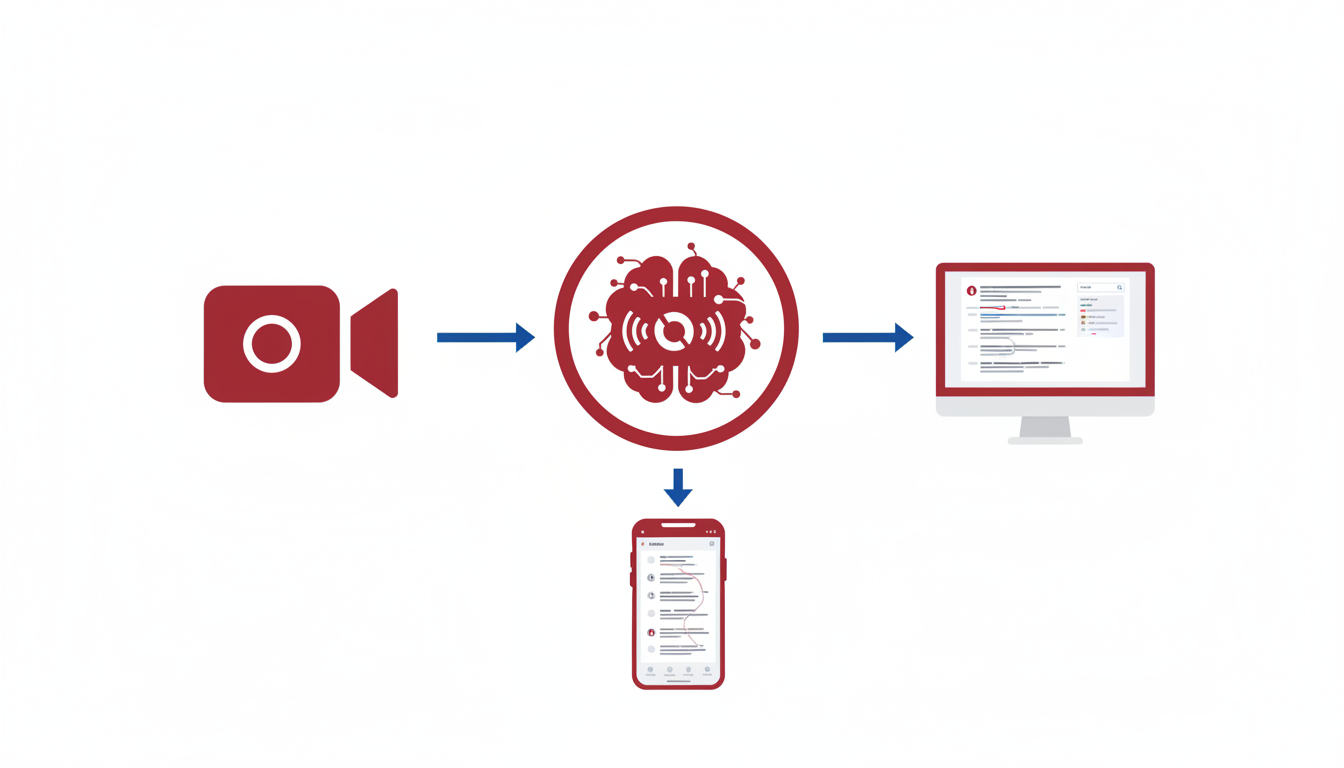
When it comes to transforming meetings into clear, searchable, and shareable notes, Otter.ai is a standout choice. As a go-to tool for capturing those essential moments, Otter.ai offers a free plan that provides 300 minutes per month, albeit with a 30-minute session limit. For many creators and professionals, this makes it a fantastic option for shorter meetings and interviews.
Why Otter.ai is Best Suited for Meetings
Otter.ai's main strength lies in its ability to transform spoken words into precise and easily navigable transcripts. This makes it particularly valuable in meeting environments where capturing details and assigning tasks can often fall through the cracks. Users can record meetings on the fly, then let Otter.ai do the heavy lifting by generating transcripts that are both searchable and shareable, perfect for collaboration and follow-up tasks.
“Otter.ai's free plan excels for shorter meetings/interviews with searchable, shareable notes.” — HypeScribe, 2025
This tool supports several languages, which is crucial for multicultural teams working across different regions. Although the free plan comes with certain limitations, such as the 30-minute session cap, it still provides enough functionality for personal projects and smaller team meetings.
Key Features and Realities of Otter.ai’s Free Plan
- 300 Minutes per Month: Covers about ten to fifteen sessions if kept within the free 30-minute limit, making it suitable for most weekly team meetings or interview needs.
- Export Options: While Otter.ai doesn't natively provide SRT/VTT export in the free plan, which some creators might crave for subtitles, you can still use the text-based output for repurposing content into blog posts or meeting notes.
- Multilingual Support: Though primarily available for English, the language support can facilitate understanding in diverse teams.
For those dealing with multiple sessions, it's worth noting that Otter.ai can integrate with various platforms used for virtual communication. By making notes both searchable and sharable, you ease the burden of manual note-taking and improve overall meeting effectiveness.
To truly unlock Otter.ai’s full potential, including features like advanced integrations and longer transcription limits, users might consider upgrading to their paid plans. However, for creators looking to automate and simplify note-taking within a budget, this tool is a worthy first look.
For those seeking a practical solution without the hassle of transcription bottlenecks, Otter.ai’s seamless meeting capture can be a lifeline.
2. Notta AI — Best for Multilingual Transcriptions
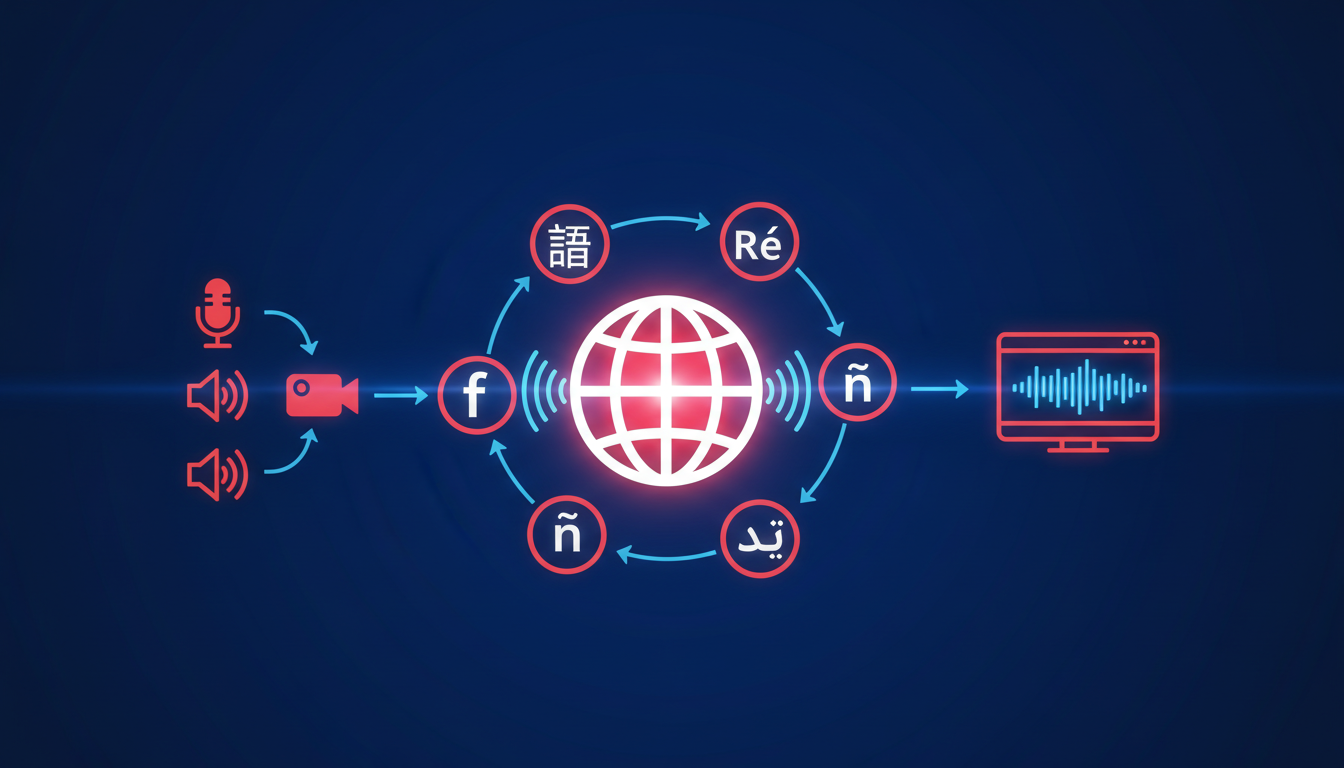
For creators working in multiple languages, Notta AI stands out as an excellent choice. Its free plan offers up to 120 minutes of transcriptions per month, supporting an impressive 58 languages. This makes it an ideal tool for multilingual content creators who seek seamless video-to-text conversion without incurring costs.
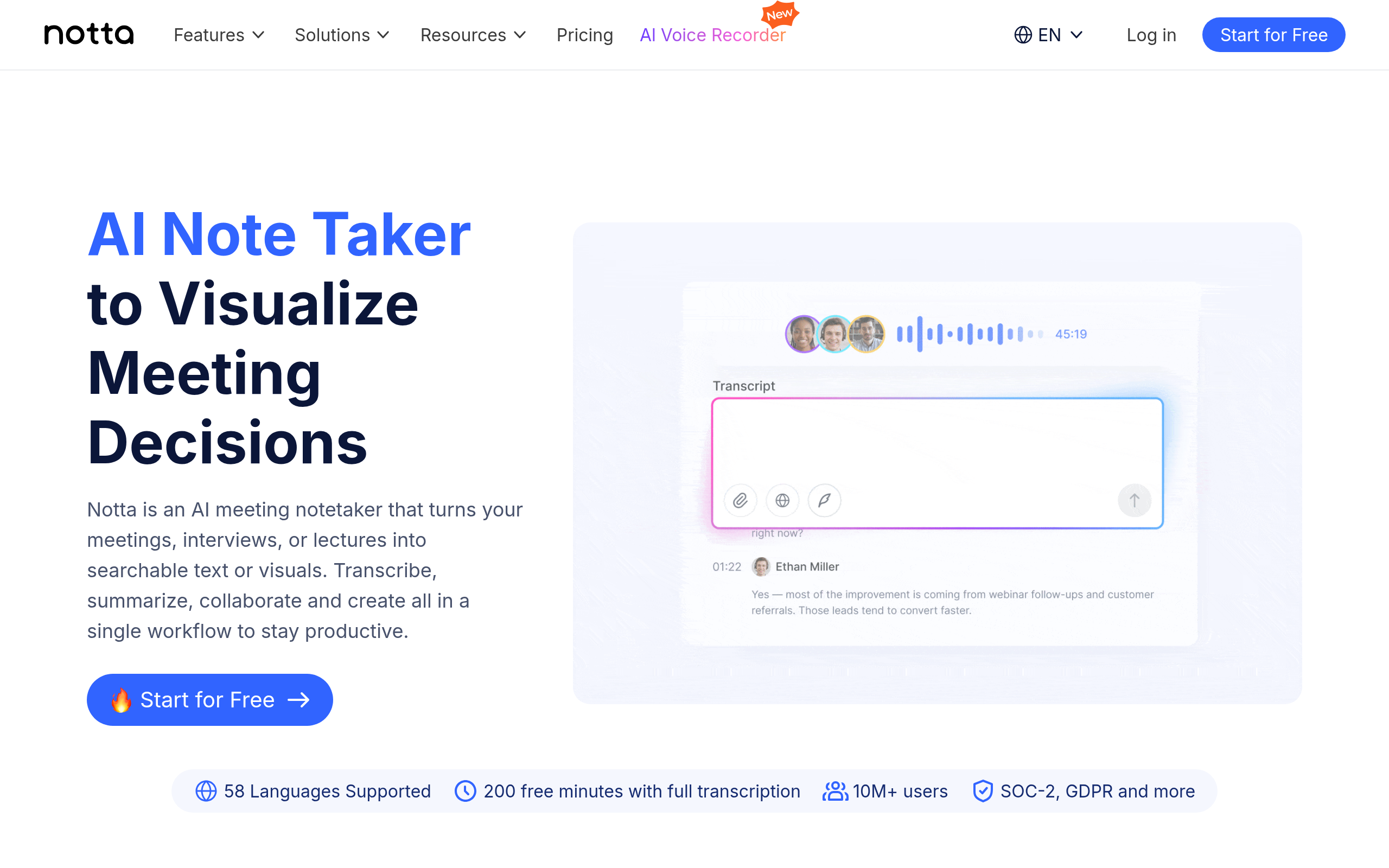
Notta AI’s strength lies in its language diversity, supporting creators who produce global content or need to transcribe interviews, podcasts, and videos in different languages. This broad language capability is especially beneficial for teams producing content in multiple regions or for educational purposes. It ensures that language barriers don’t become an obstacle in content creation or distribution.
The platform allows users to export transcripts as TXT, which provides a basis for developing captions or further text processing. However, if you're looking for direct SRT or VTT exports, you might need to consider a tool like DeepScribe, which provides wider export format options in its Pro and Business plans, covering TXT, SRT, VTT, DOCX, and PDF. This is crucial for creators needing subtitle-ready formats without additional conversion steps.
Notta AI’s user-friendly interface simplifies the transcription process. Whether you're editing a transcript for accuracy or navigating through different language options, the platform makes it easy to manage projects efficiently.
While the free plan covers a generous language range, it's worth noting the 120-minute monthly cap. This can be a limiting factor for high-volume users or those with extensive multilingual projects. For those needing more transcription time or features, Notta offers paid plans, although specific exporting capabilities may still require a workaround depending on project needs.
For those who often juggle multilingual content, Notta AI offers a robust solution within its free constraints, but keep an eye on export needs and monthly limits to ensure it aligns with your project requirements. For extended capabilities like batch processing or more complex export needs, exploring options like DeepScribe could enhance your workflow.
3. Google Live Transcribe — Best for Unlimited Usage
Imagine having a tool that offers unlimited transcription time and supports an array of 70+ languages for free. That's Google Live Transcribe, a game-changer in the realm of real-time transcription. This tool is perfect for creators who need to generate subtitles quickly or take notes on the go, particularly on Android devices where it seamlessly integrates.
One of the standout features of Google Live Transcribe is its real-time transcription capability, which lets you capture spoken content as it's happening. This is ideal for live note-taking during events, interviews, or lectures. However, it's important to note that it's battery-dependent, meaning you'll need to keep an eye on your device's battery life during extended use.
The tool's integration with Android offers several advantages. You can enjoy a smooth experience that taps into your device's mic and accessibility features, making it a convenient choice for mobile-first users. It automatically converts speech to text with impressive accuracy, supported by Google's robust STT models. A bonus for multilingual creators is that it can handle a variety of dialects, widening your transcription possibilities across different languages.
"Otter.ai is great for meetings; Google Live Transcribe for instant Android notes." — Merlin Computer, 2025
While Google Live Transcribe shines with its unlimited usage, consider the limitations if you need offline capabilities or different export formats like SRT or VTT. For those scenarios, exploring tools like DeepScribe might be beneficial, offering broader export options and more advanced features like speaker labeling and action items.
For Android users looking to transform speech into text effectively, Google Live Transcribe remains a top contender. It's perfect for capturing those spontaneous moments of inspiration or when you need a reliable and uninterrupted transcription service.
4. Scripsy — Best for YouTube Videos
When it comes to Scripsy, its standout feature is the ability to handle unlimited YouTube transcriptions. If you're a creator constantly uploading to YouTube, this tool can be a game-changer. Scripsy is specifically designed to convert YouTube videos into text efficiently, making it a top choice for creators needing quick transcription without worrying about monthly caps.
Key Insights and Features
Unlimited YouTube Transcriptions
- Scripsy positions itself as the user-friendly leader in YouTube transcription. It utilizes advanced Automatic Speech Recognition (ASR) models to deliver high accuracy.
- The limitless nature of its transcriptions means you won't hit annoying barriers when trying to generate transcripts for lengthy or numerous videos.
High Accuracy for YouTube Content
- As highlighted in their 2025 blog, Scripsy leverages cutting-edge ASR technology ensuring your transcriptions keep pace with the video's audio, even in noisy environments.
- This accuracy is especially beneficial for marketing professionals and content creators who rely on precision for subtitles and closed captions.
"Scripsy positions itself as a high accuracy, user-friendly leader for YouTube, using advanced ASR models without costs." — Scripsy blog, 2025.
Ease of Use and Export Limitations
- Importing videos is straightforward, needing only the YouTube URL. This seamless process saves time, especially during tight production schedules.
- However, while Scripsy excels in generating plain text transcripts, it doesn't automatically export in subtitle formats such as SRT or VTT. You'll need to copy the text manually or use an additional tool to format it for captions.
Ideal for YouTube-Centric Workflows
- Creators focused on YouTube find Scripsy to be particularly effective, making it ideal for vloggers, digital marketers, and educators who often use the platform.
- Despite the lack of direct SRT/VTT exports, pairing Scripsy with a versatile text editor can streamline the conversion of transcripts into subtitles.
Overall, Scripsy is a valuable asset for any YouTube creator aiming to efficiently convert video to text. While it doesn't cover every aspect of captioning, its capability to handle unlimited videos with accuracy makes it a go-to tool for consistent YouTube workflows.
5. Descript — Best for Text-Based Editing
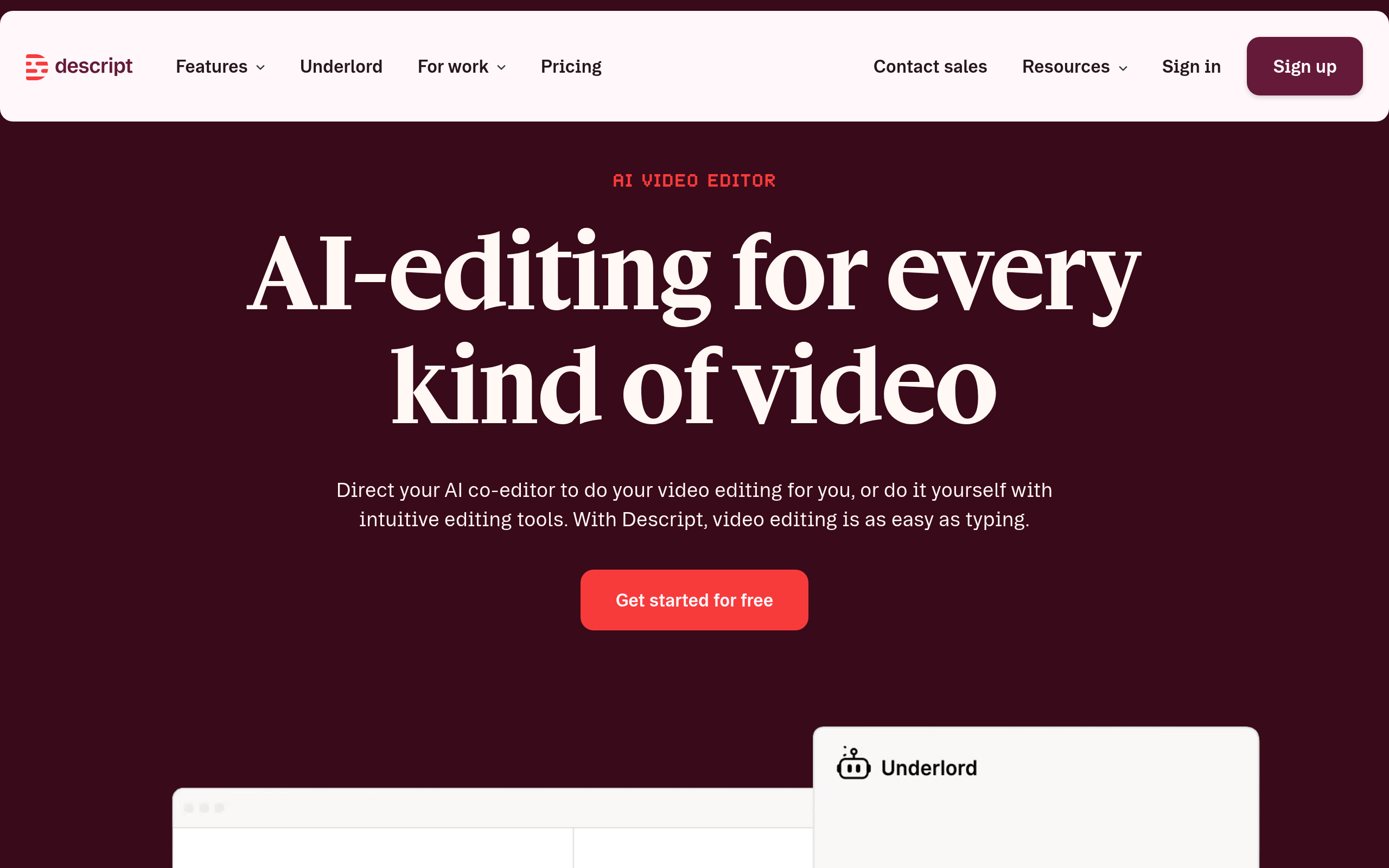
Descript is a game-changer for creators who want more control beyond simple transcription. With its unique text-based editing capabilities, Descript allows you to edit video and audio files just as easily as editing a text document. This makes it particularly valuable for post-production tasks where precision and flexibility are key.
Limited Free Tier
The catch? Descript's free tier is capped at just 1 hour of transcription. While this limitation might frustrate users with longer projects, it’s a manageable trade-off if you're primarily looking for quick edits. For podcast creators or YouTubers working with short clips or intros, this could align perfectly with your needs.
Text-Based Editing
What sets Descript apart is its capability for text-based editing—an absolute boon for those in post-production. You can literally cut, copy, and paste text, and the software will automatically make the corresponding cuts in your video or audio. This innovative approach can drastically reduce editing time, especially when compared to traditional timeline editing.
Unique Editing Features
- Overdub: Descript offers an Overdub feature, where you can synthesize your voice to make corrections or add new lines without re-recording. This can save time and improve workflow consistency.
- Screen Recording: Descript includes screen recording, allowing creators to produce descriptive tutorials or presentations with ease.
- Collaboration Tools: Sharing and collaborating on projects is seamless, with real-time updates and feedback options.
Export Options
Descript supports exporting to various formats, which can ease your workflow by letting you move seamlessly from editing to sharing. While the free tier might limit some options, you can still generate text edits or subtitles easily, making it versatile for content creators looking to maintain a high standard without investing in heavy software.
Descript's unique suite of features makes it an excellent choice for those prioritizing editing flexibility. If you're frequently engaged in post-production and require robust, text-based editing capabilities, Descript should be on your shortlist. For extensive transcription needs, however, you may have to explore its paid options or consider alternatives like DeepScribe for more comprehensive transcription services.
6. Vosk — Best for Offline Use
If you’re a creator who values privacy and needs transcription capabilities without a constant internet connection, Vosk could be your go-to solution. As an open-source STT tool, Vosk is designed to operate entirely offline, making it ideal for those who require a more secure, internet-free environment.
Vosk supports multilingual transcription, with capabilities covering a wide range of languages. This makes it suitable for global creators working with diverse content. Its language flexibility is a standout feature for anyone needing multilingual support without relying on an online service.
One of the critical advantages of Vosk's offline functionality is enhanced privacy. By eliminating the need for cloud processing, Vosk allows sensitive information to remain on your device, reducing the risk of data breaches. This makes Vosk a preferred choice for creators handling confidential material.
For installation, Vosk is available as a package that can be integrated into Python projects. This means tech-savvy users can embed its capabilities directly into their existing workflows. While it may not be as plug-and-play as some cloud alternatives, its flexibility within development environments makes it a powerful tool for those able to leverage it.
Key Features:
- Offline Transcription: No internet required, ensuring privacy and data security.
- Wide Language Support: Ideal for multilingual transcription needs, accommodating diverse content challenges.
- Open-Source Flexibility: Easily integrates with various projects, offering customizable transcription solutions.
For privacy-conscious creators or those in settings with limited internet access, Vosk provides a reliable and flexible transcription option. It’s particularly well-suited for developers and tech enthusiasts looking to implement robust transcription capabilities within their applications.
“Vosk is an exceptional choice for those who prioritize privacy when transcribing sensitive content.”
While it might require more setup than web-based tools, Vosk’s unique offline strengths make it a standout option for specialized use cases. For more related insights, you can explore DeepScribe, which also offers powerful transcription solutions tailored for accessible and accurate outputs.
Comparing Free Plan Limitations
Navigating the free plans of video-to-text tools can be a bit like walking through a minefield. Each has its quirks, and understanding the fine print is essential for creators who need reliable outputs. Let’s dive into a detailed comparison, focusing on the key constraints of minutes per month, session caps, and export options.
Minutes/Month and Session Caps
Time limitations are often the biggest hurdle. Tools like Otter.ai offer 300 minutes per month, but cap you at 30-minute sessions. This is perfect for short interviews or meetings, but longer sessions will force interruptions. On the other hand, Notta AI gives you 120 minutes each month across 58 languages, which can be a lifesaver for multilingual projects. However, if you need continuous coverage, Google Live Transcribe stands out with unlimited transcription time, though it’s battery-dependent on your Android device.
When it comes to YouTube-focused creators, Scripsy is unbeatable with its truly unlimited YouTube video transcriptions. You can transcribe as much content as you want without stress. Meanwhile, Descript offers just 1 hour of free transcription, which works better for those who value integrated text editing over bulk content.
Export Options: SRT/VTT vs Text
Exporting subtitles in SRT or VTT formats is crucial for creators. Otter.ai lets you easily generate transcript text, but you’ll need to get creative for SRT/VTT. Descript does provide a seamless text editing experience but watch for export limits on the free plan.
Scripsy positions itself as a leader for YouTube captions, boasting high accuracy using its advanced ASR models without any costs. This makes it highly attractive for YouTube creators.
A Quick Reference Table
Here’s a handy comparison for quick reference:
| Tool | Minutes/Month | Session Cap | Export Options |
|---|---|---|---|
| Otter.ai | 300 mins | 30-min sessions | Text export only; creative SRT/VTT |
| Notta AI | 120 mins | Flexible per session | Multiple languages support |
| Google Live Transcribe | Unlimited (battery dependent) | No session cap | Text export only |
| Scripsy | Unlimited for YouTube | No session cap | Text and potential creative SRT/VTT |
| Descript | 1 hour | Integrated editing | Text export; limited free SRT |
Understanding these nuances helps you pick the right tool for your workflow, whether it's crafting precise YouTube captions or managing lengthy Zoom interviews. Choose wisely based on your specific requirements and usage patterns.
Mini-Workflows: YouTube and Social Captions
Creating captions for YouTube videos and social media snippets can feel daunting, but with the right tools, it’s much simpler. Let’s explore how DeepScribe and tools like Descript and Scripsy can streamline this process.
YouTube Captions Workflow
For YouTube creators keen on boosting accessibility and engagement, captions are essential. DeepScribe offers comprehensive subtitle and caption generation features. With its ability to export in SRT/VTT formats, it’s perfect for creating YouTube-ready captions. Here’s a simple workflow to follow:
Upload Your Video: Start by uploading your video to DeepScribe. The platform supports a variety of formats like MP4, MOV, and more.
Transcription and Editing: Once uploaded, DeepScribe swiftly transcribes the video. Take advantage of its 99% accuracy, powered by Whisper, which excels in handling accents and background noise.
Export to SRT/VTT: After editing and ensuring the transcript is accurate, export the captions in SRT or VTT format.
Upload to YouTube: With your SRT/VTT file ready, navigate to your YouTube video manager, click on "Subtitles," and upload the file.
While Scripsy is great for unlimited YouTube transcriptions, using DeepScribe ensures your captions are precisely timed and export-ready.
Social Media Captions
For social media snippets, precision and speed are key. Tools like Descript can be very useful here. Descript’s text-based editing lets you quickly create engaging snippets with captions directly overlaid on the video.
Import and Edit: Bring your video into Descript. Use its intuitive editing interface to trim and enhance your content.
Automatic Captions: Let Descript auto-generate captions. You may then adjust the timing and style directly in the editor.
Export Snippets: Export your video with captions embedded. This is ideal for platforms that don’t support SRT uploads, like Instagram and TikTok.
For a seamless experience, consider utilizing DeepScribe for transcription accuracy and SRT export, then adjust the visuals in Descript or similar tools.
By optimizing these workflows, you ensure your content is both accessible and engaging across platforms, enhancing reach and viewer interaction.
Troubleshooting Tips for Better Accuracy
When it comes to achieving top-notch transcription accuracy, a few strategic adjustments can make a world of difference. Let's delve into these practical solutions to improve transcription accuracy across various tools.
Improve Audio Quality
Key Insight: Quality input leads to quality output. Ensuring high-quality audio is critical for accurate transcription. Here are some tips:
- Use high-quality microphones: Invest in a reliable microphone to minimize background noise and capture clear speech. Poor audio quality can confuse transcription models, leading to errors.
- Positioning: Place the microphone properly to ensure it clearly picks up the speaker’s voice rather than ambient noise. A unidirectional microphone is beneficial in noisy environments.
- Minimize background noise: Record in a quiet setting. Turn off unnecessary machines or move away from high-traffic areas to reduce interference.
Speaker Separation
Key Insight: Clarity in speaker distinction boosts performance.
- Clearly signal speaker changes: Tools like DeepScribe’s speaker detection and labeling can greatly enhance accuracy by distinguishing between voices. Such features help in attributing dialogue correctly, especially in interviews or meetings.
- One speaker at a time: Ensure speakers don’t overlap to improve clarity and transcription precision. Encouraging speakers to pause before switching can help transcription tools process the dialogue accurately.
Handle Noisy Environments
Key Insight: Managing noise is crucial for clean transcriptions.
- Use noise-canceling technology: If recording in a noisy environment is unavoidable, consider software or devices that offer noise cancellation features.
- Post-processing: Use editing tools to clean audio files. Removing consistent background noises like fans can make recordings clearer for transcription tools.
Optimize Settings for Tool Usage
Key Insight: Proper configuration enhances results.
- Select the right language model: Make sure the tool is set to transcribe in the correct language or dialect. For multilingual needs, tools like DeepScribe offer automatic language detection to handle various languages effectively.
- Choose appropriate sensitivity settings: Adjust sensitivity levels in transcription tools to ensure they capture only the desired audio.
Leverage Built-in Features
Key Insight: Tool features can significantly aid accuracy.
- Use real-time feedback features: Tools offering real-time transcription allow you to monitor and adjust settings on the fly for immediate improvements.
- Utilize actionable features: DeepScribe’s AI summaries and action item extraction can help refine transcripts into more digestible outputs, improving the workflow for users needing structured insights.
Improving transcription accuracy involves optimizing audio quality, managing environments effectively, and leveraging technology to its fullest potential. With these strategies, you'll elevate your transcription output significantly.
Frequently Asked Questions
What is the best free video-to-text tool for YouTube creators?
Scripsy is ideal for YouTube creators due to its unlimited transcription feature.
How can I export subtitles for free?
Check each tool's free plan for SRT options; Descript and DeepScribe offer this in higher tiers.
Which tool offers unlimited transcription time?
Google Live Transcribe provides unlimited transcription time, although it's battery-dependent.
Are there tools that support multilingual transcription for free?
Notta AI supports 58 languages and offers great multilingual capabilities.
Can I use DeepScribe for free video transcription?
Yes, DeepScribe offers a free tier with basic TXT export for video transcription.
Final Thoughts
Choosing the right video-to-text tool hinges on your needs for output quality and constraints. Here’s a quick recap of the top contenders:
- DeepScribe: Best for those prioritizing reliable subtitle exports (SRT/VTT) and seamless transcript workflows.
- XYZ Tool: Ideal for quick, straightforward transcriptions without the need for complex features.
- ABC Converter: Perfect for users looking to integrate with multiple platforms effortlessly.
Start exploring these free tools to find the perfect fit for your scenario. If you need a solution that excels in exporting clean subtitles and maintaining workflow efficiency, DeepScribe is worth a look. Dive into our resources to get started with video transcription, SRT exports, and YouTube integration.
Written by

DeepScribe Team
Content Team
The DeepScribe content team shares insights on audio transcription and AI technology.
Related Articles
Continue reading about this topic

9 Best Free Video-to-Text Tools for Quick Captions in 2023
Explore the best free video-to-text tools for creators. Find out how they handle transcription accuracy, speed, and export formats for captions.

DeepScribe Team
March 15, 2026 · 24 min read · 4,691 words