
How to Transcribe YouTube Videos With AI for Free (Guide)
Discover a complete workflow to turn YouTube videos into editable subtitles and transcripts for free using AI tools. This guide includes essential cleanup steps for professional results.

DeepScribe Team
Content Team
How to Transcribe YouTube Videos With AI for Free (Guide)
Most creators can generate a free transcript from YouTube, but it’s rarely clean enough for publication. If you've struggled with messy outputs or awkward captions, then you know the value of a reliable workflow. This guide promises exactly that: transforming any YouTube video into an editable transcript and clean SRT captions using DeepScribe’s URL-to-transcript workflow. You'll learn to fix the common pitfalls that thwart most free tools—mismatched timing, missing speaker labels, and overlooked errors—turning them into polished, publish-ready text. By the end, you’ll know how to seamlessly export your ready-to-use content in various formats, making you capable of handling everything from video repurposing to enhanced SEO. Let’s dive into creating a streamlined, frustration-free transcription process that sets you apart from the rest.
Understanding AI Transcription for YouTube Videos
Navigating the world of AI transcription for YouTube videos free can be transformative, especially for content creators, video editors, and marketers. While generating a YouTube transcript might seem straightforward, achieving a publish-ready document requires attention to detail and understanding of the tools involved.
AI transcription tools streamline turning video audio into text. They employ automatic speech recognition (ASR) technology to identify spoken words and convert them into text. While useful, these tools have limitations. Free solutions often come with trade-offs such as accuracy issues, usage limits, and necessary editing.
Key Insight: AI alone rarely delivers a ready-to-publish transcript without human intervention for accuracy.
Editing for Publishable Results: It's crucial to address three common pitfalls—timing, speaker labels, and proofreading. Effective transcription involves managing these elements to ensure the transcript is accurate and professionally formatted. For instance, DeepScribe offers speaker detection and labeling, a key feature for interviews and panel discussions where knowing who said what is vital.
Limitations of Free Tools: Here’s where free tools often fall short:
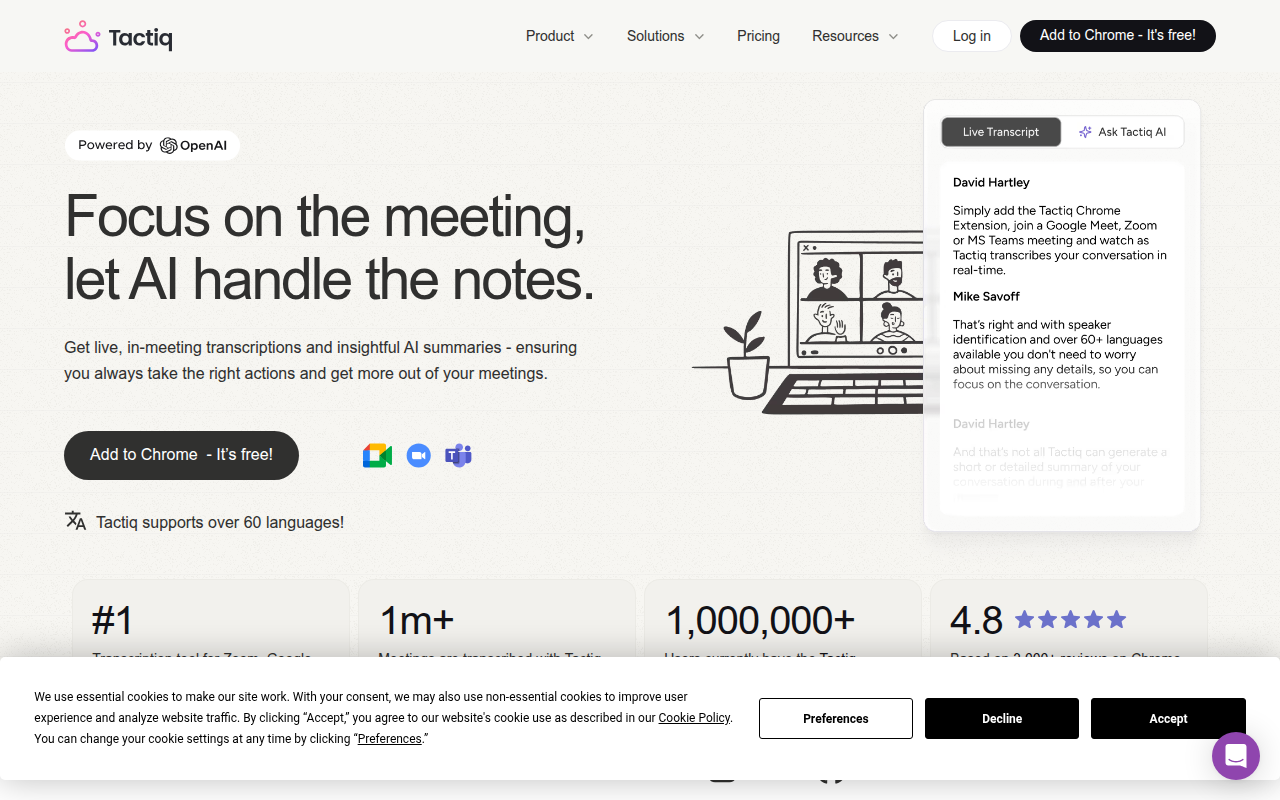
Accuracy Concerns: Tools like Tactiq provide a starting point with ASR but note that accuracy may not be 100%. Corrections are inevitable, especially when dealing with accents or noisy backgrounds.
Usage Restrictions: Kome AI offers quick transcript generation but imposes usage limits that can impact high-volume needs. Free tools may seem appealing upfront but can limit your workflow efficiency as needs increase.
Proofreading Necessity: As backed by research, combining AI capabilities with human editing enhances quality. Proofreading ensures the transcript aligns with the spoken content, maintaining both accuracy and professionalism.
Proven Strategy: Audio preparation can significantly boost transcription accuracy. Simple tweaks like enhancing audio quality before transcription can save editing time later.
Ultimately, the goal is to integrate AI transcription into a publish-ready workflow that includes meticulous editing and exporting options like SRT for subtitles and other text formats for editing. This method ensures the content is not just free but also functional and ready for wide distribution. For further workflow enhancements, exploring DeepScribe’s broad transcription capabilities can make the task more efficient and reliable.
How to Transcribe YouTube Videos with AI for Free (URL Method)
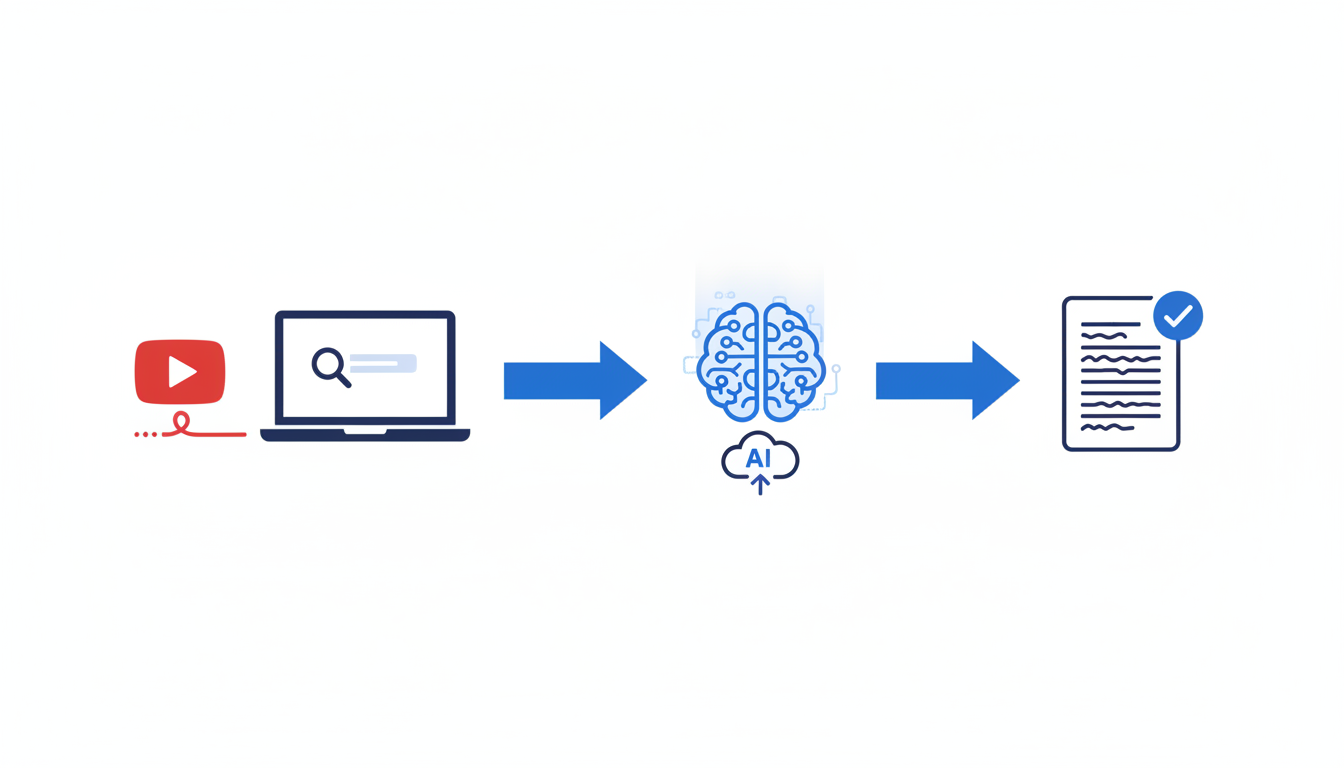
Diving into the world of YouTube transcription doesn’t have to drain your wallet. With DeepScribe's URL-to-transcript workflow, you can transform any video into text seamlessly and at no cost. Let’s break down how this works.
Getting Started with DeepScribe’s URL-to-Transcript Workflow
Imagine taking any YouTube video and turning it into a high-quality transcript with just a few clicks. DeepScribe makes this possible, leveraging its Whisper-powered accuracy to ensure your transcripts are clean and precise. Whether you’re a content creator or a marketer, this tool is tailored for you.
Step-by-Step Guide: Uploading and Generating a Transcript
1. Prepare Your Video URL
Start by copying the URL of your desired YouTube video. Ensure the video has clear audio for optimal transcription accuracy. Audio clarity is a game-changer here—avoiding background noise and enhancing speaker quality can significantly boost the final result.
2. Paste the URL into DeepScribe
Navigate to the DeepScribe platform and use the dedicated URL-to-transcript feature. Paste your YouTube link into the provided field and let DeepScribe’s AI do the heavy lifting. The system supports all major languages, making it an excellent choice for multilingual content.
3. Generate and Review Your Transcript
Once you’ve submitted the URL, DeepScribe quickly processes the video, converting speech into text with remarkable speed and accuracy. This is due to its advanced ASR technology, which ensures you receive a precise initial output.
Initial Output Summary: What to Expect
When your transcript is ready, it’s crucial to manage your expectations. Here’s what you’ll typically find:
- Timing: AI gives you the raw transcript with time stamps. Remember this will need some alignment adjustments.
- Speaker Labels: If the video includes multiple speakers, note that the initial labels may require manual refinement.
- Text Accuracy: While DeepScribe is powered by Whisper, which is known for its top-tier accuracy, complex audio may need some editing for perfection.
The real magic happens in the cleanup phase, but your first draft from DeepScribe should already be an impressive foundation. With features like multilingual support and automatic language detection, it’s a powerhouse for handling diverse content.
Key Takeaway: While generating a transcript using DeepScribe from a YouTube URL is incredibly straightforward, investing time in fixing timing, speaker labels, and proofreading will make your transcript truly publish-ready.
By using DeepScribe’s free offering, you're equipped with both versatility and quality—ensuring your YouTube content is transformed into valuable, accessible text ready for SEO, repurposing, or direct publication. For more insights, check out our DeepScribe blog where we dive deeper into AI-powered transcription solutions.
## Improving Transcript Accuracy: Audio Preparation and Proofreading
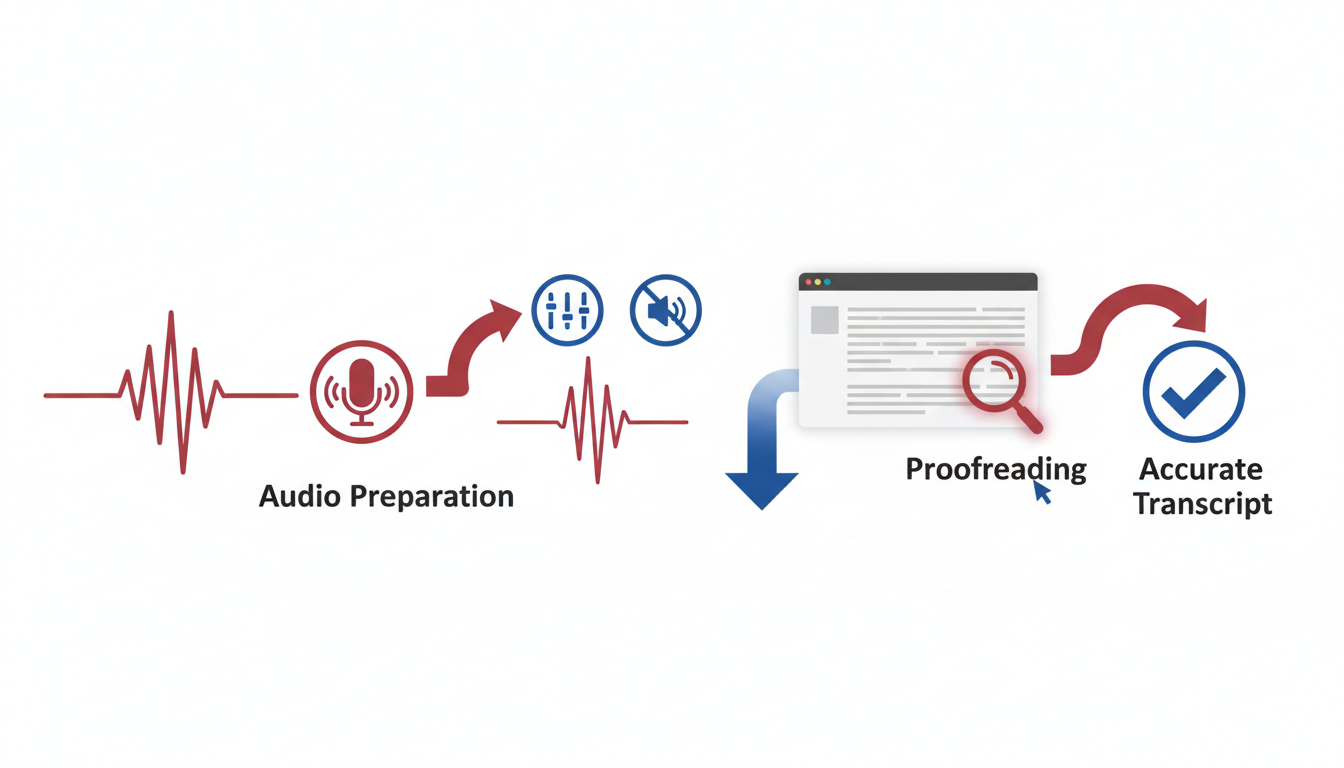
Creating a publish-ready transcript from YouTube videos starts with a critical foundation: **quality audio**. The axiom "garbage in, garbage out" holds true—poor audio quality can significantly hinder the accuracy of transcription, even when using advanced AI tools like DeepScribe. Here's how to ensure your audio is up to par:
1. **Source the Best Audio**: If possible, use high-resolution audio files as opposed to compressed formats. Superior sound clarity reduces background noise, making it easier for AI to discern words accurately. According to Ditto Transcripts, proper audio preparation can improve accuracy significantly.
2. **Minimize Background Noise**: Ensure the recording environment is quiet. Even the best automatic speech recognition (ASR) struggles with competing sounds like traffic or conversations, which can lead to transcription errors.
3. **Enhance with Software**: Use audio editing software to boost clarity—reduce noise, enhance speech, and eliminate any unwanted hums or echoes before feeding it into transcription tools.
After audio preparation, the next critical step is **proofreading**, an often underappreciated yet essential part of refining AI-generated transcripts:
1. **Compare with Original Audio**: Play back the audio while reviewing the transcript. This dual approach helps catch misheard words or phrases that the AI might have misunderstood due to homophones or accents.
2. **Correct Speaker Labels**: Tools like DeepScribe offer speaker detection, but it's important to verify this manually to ensure every speaker attribution is accurate, especially in multi-speaker settings like podcasts or interviews.
3. **Spot Misinterpretations**: Look out for technical jargon or unique terminologies that may not have transcribed correctly. Feel free to use resources like company glossaries or specific style guides for consistency.
4. **Readability and Flow**: Ensure the transcript reads well. Check for awkward breaks and formatting issues that may affect the reading experience for end users.
> **Key Takeaway**: "Not all auto-transcripts are created equal; proofreading is essential to improve accuracy." This insight reinforces that while AI saves time, a human touch is crucial to polish and validate the text.
Implementing these strategies transforms a basic transcript into a polished, publishable asset, making your video content more accessible and SEO-friendly. Remember, tools like DeepScribe offer high accuracy with features designed to enhance transcription when combined with diligent proofreading.
## Optimizing Subtitles: Speaker Labels and Timing
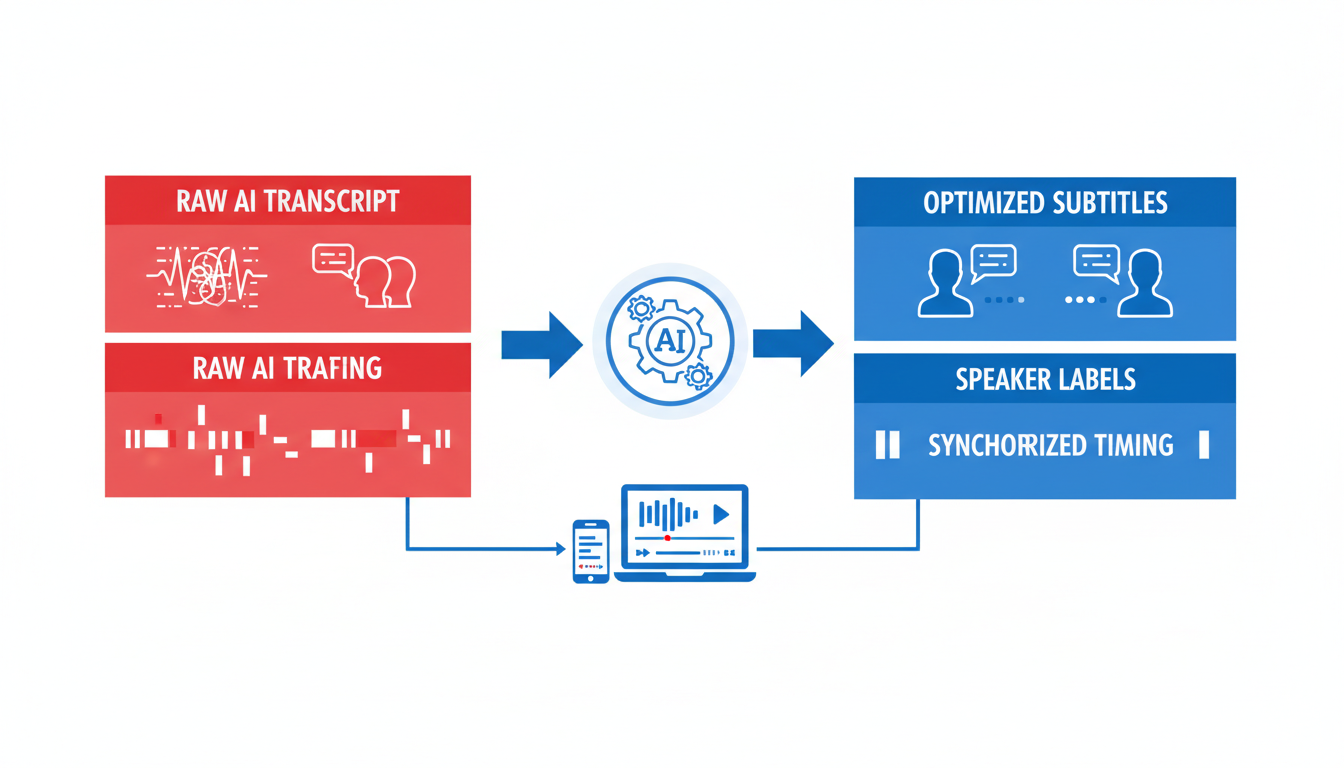
Creating publish-ready subtitles involves more than just generating a transcript. Two critical elements that often require attention are **speaker labels** and **timing**. Let’s break down how to tackle these using DeepScribe’s tools to ensure top-notch quality.
### Adding Speaker Labels for Clarity
In multi-speaker scenarios, adding **speaker labels** is crucial for maintaining clarity. Whether you’re handling interviews, podcasts, or panel discussions, identifying who is speaking enhances the reader's comprehension and engagement. DeepScribe’s **speaker detection & labeling** feature automatically tags separate speakers, minimizing your manual workload. This is an invaluable tool for content creators who want accuracy without the tedium of manual input.
However, while AI does a tremendous job, it isn’t foolproof. Some crosstalk or unique voices might still slip through. Hence, proofreading remains essential. *For instance, if two voices sound alike or overlap, the labels might be inaccurate.* An easy fix would be listening to those segments and manually adjusting the labels to ensure correctness. This approach balances speed and precision, providing a cleaner, more reader-friendly transcript.
### Fixing Timing Issues
Proper **subtitle timing** is vital for readability and engagement. Captions that drift or have awkward pauses can distract from the viewing experience. DeepScribe helps streamline this by offering export formats like **SRT** and **VTT**, which allow you to fine-tune timing easily.
To align subtitles with industry standards, consider these key points:
1. **Duration**: Each caption should ideally last between 1 and 6 seconds on screen.
2. **Reading Speed**: Aim for a reading speed of 120 to 150 words per minute to ensure viewers can comfortably follow along.
3. **Line Breaks**: Ensure breaks occur at logical points, such as the end of a sentence or phrase, rather than mid-thought.
> "Not all auto-generated captions are created equal; proofreading is essential," a common insight underlines the importance of fine-tuning these elements.
### Enhancing Readability with DeepScribe
Using DeepScribe’s features, you can export your subtitles into various formats, allowing for easy editing and timing adjustments. Start by exporting to a format that suits your workflow, like **SRT** for YouTube, ensuring captions sync accurately with the video content.
By integrating **AI tools with human editing**, you create a more polished, professional output. This hybrid approach leverages technology for efficiency while retaining the human touch for quality, ultimately saving time and enhancing the viewer experience.
Remember, attention to detail in speaker labeling and timing elevates your content from good to exceptional, reinforcing viewer trust and engagement.
## Export Options: When to Use TXT, SRT, or VTT
Navigating export formats can be crucial in ensuring your transcribed content is both accessible and functional. Whether you’re a content creator or a marketing professional, choosing the right format can make a difference. Let’s break down the options.
### TXT: The Versatile Standard
**Use cases for TXT:**
- Simplest format for editing and repurposing text.
- Ideal for scripts, blog posts, or notes that need further adaptation.
**DeepScribe’s Offer:**
TXT exports are available for all DeepScribe users, making it an accessible format for anyone needing a quick text file without the bells and whistles of timestamps or formatting.
### SRT: For Professional Subtitles
**Use cases for SRT:**
- When you need subtitles for videos, including YouTube.
- Maintains timing and sequence, making it perfect for syncing captions with video content.
**DeepScribe’s Offer:**
SRT files are part of the Basic plan and above. This ensures your captions maintain professional quality, crucial for video editors and creators focusing on accessibility and SEO.
**Key Insight:**
Using SRT enables you to provide clear, timed subtitles that enhance viewer experience.
### VTT: Enhanced Web Compatibility
**Use cases for VTT:**
- Often used for HTML5 multimedia elements.
- Supports additional features like captions’ styling and positioning.
**DeepScribe’s Offer:**
VTT export is available for Pro and Business plans, aligning with complex publishing requirements where detailed captioning is crucial.
### Choosing the Right Format
Here's a comparative look to guide your decision:
| **Format** | **Best For** | **Offered In** |
|------------|-------------------------------|---------------------------|
| **TXT** | Text editing and repurposing | All plans (Free included) |
| **SRT** | Video subtitles | Basic and above |
| **VTT** | Enhanced web captions | Pro and Business |
> **Expert Tip:** If your primary need is editorial flexibility, opt for TXT. When subtitle synchronization is key, SRT will serve you best, while VTT is your go-to for advanced web usage.
Understanding these formats helps streamline your workflow, ensuring you have the right tools at your disposal for each use case. For a deeper dive into transcription capabilities, visit [DeepScribe](https://deepscribe.io).
## Comparing Free AI Tools for YouTube Transcription
Transcribing YouTube videos can be a hassle if you're relying solely on free tools, but understanding the landscape can help you choose the right option. Let's dive into some popular free transcription tools, and see how each stacks up against DeepScribe, which we’ll highlight for its unique offerings.
### Tactiq: Decent But Not Flawless
**Tactiq** uses automatic speech recognition (ASR) technology to generate YouTube transcripts. While it’s user-friendly, it’s important to note that its **accuracy may not be 100%**. This is a common issue with many free transcription tools, so always plan for a proofread to catch errors.
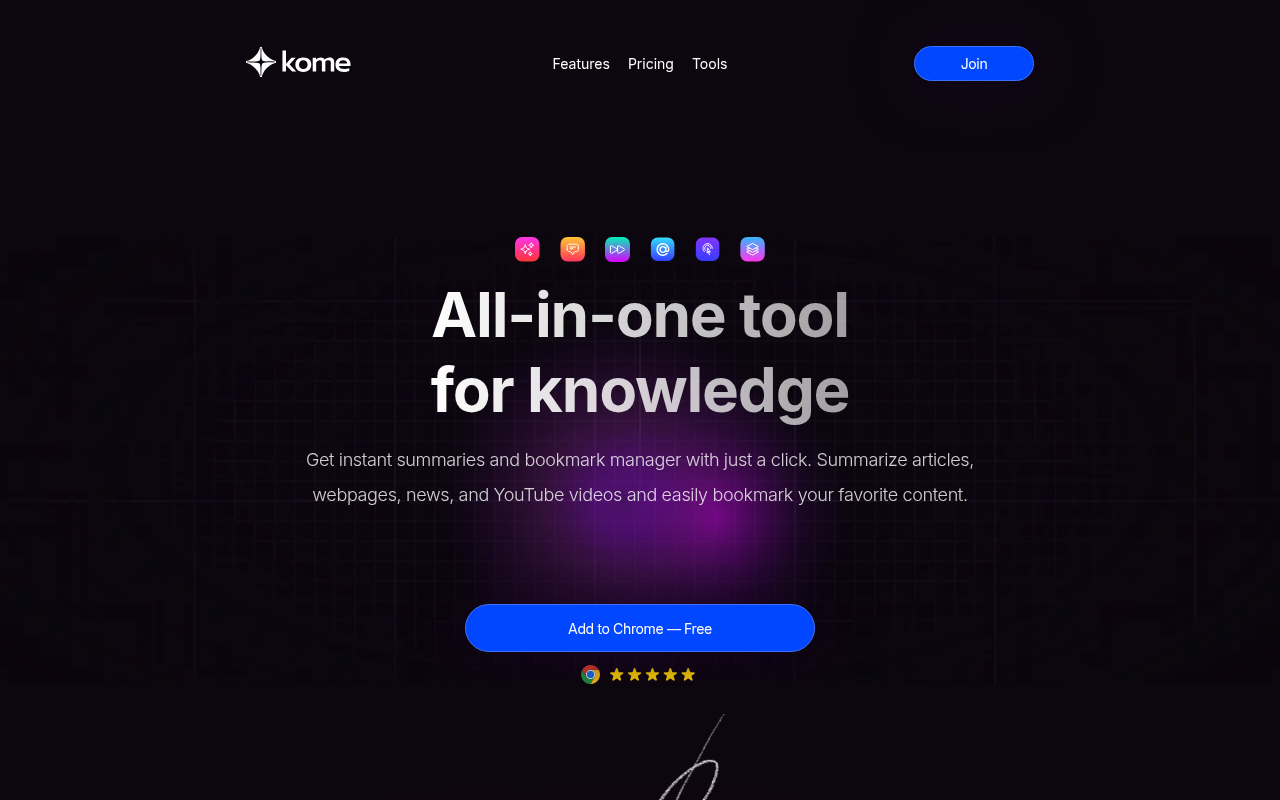
### Kome AI: Efficient Yet Limited
**Kome AI** offers rapid YouTube transcript generation using advanced AI algorithms, but keep an eye out for **usage limits**. This might be a concern if you are handling a high volume of content or lengthy videos. Usage constraints can become a bottleneck, pushing creators towards paid plans.
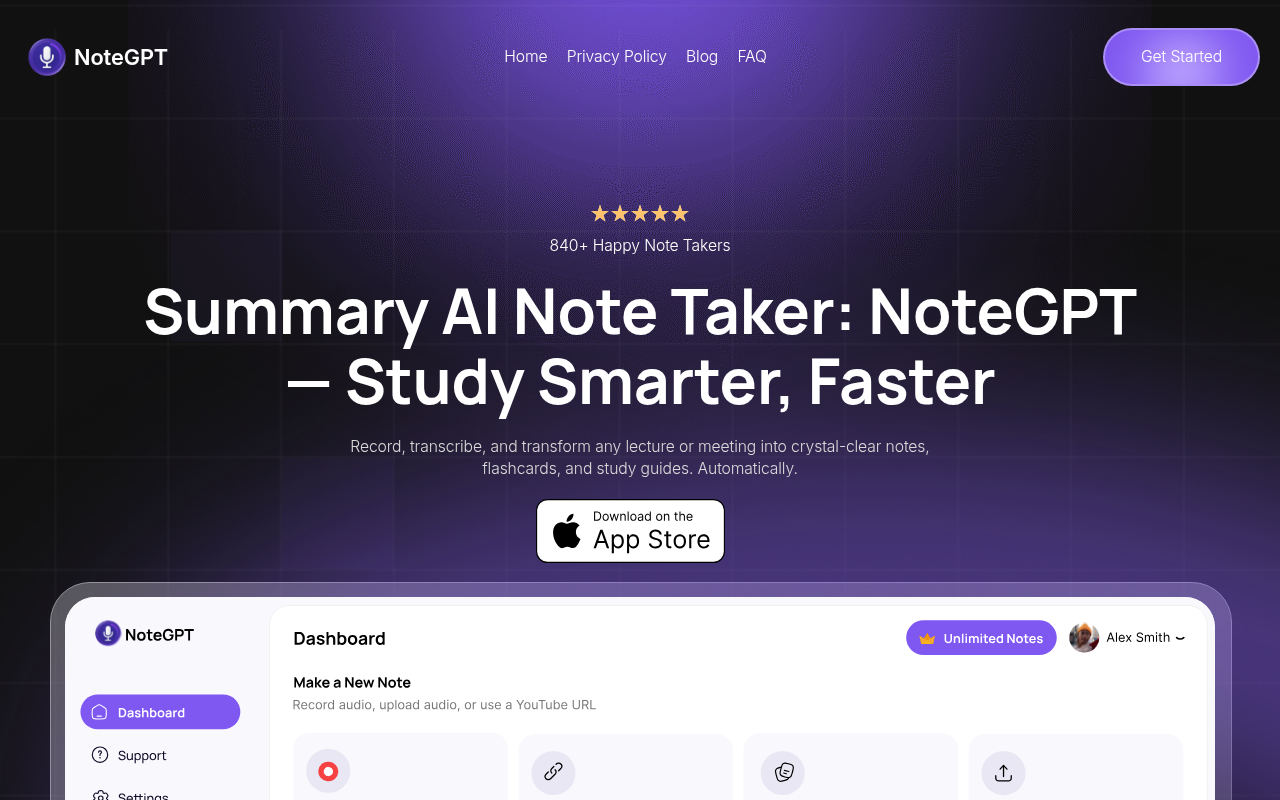
### NoteGPT: No Sign-Ups, With Features
**NoteGPT** is a handy option if you wish to skip the sign-up process, and it provides timestamps, which can be crucial for editing. However, the lack of speaker labeling might be a downside if you’re transcribing interviews or multi-speaker content.
### Why DeepScribe Stands Out
When comparing these tools, **DeepScribe** shines with features that address the shortcomings of its competitors. It offers **Whisper-powered accuracy**, which is critical in ensuring that your transcripts are as close to perfect as possible. DeepScribe also provides **speaker detection and labeling**, making it a go-to choice for interviews or any multi-speaker videos. Moreover, DeepScribe boasts **lightning-fast processing** and **multilingual transcription capabilities**, making it ideal for diverse and global content. Plus, it offers a broad range of export formats, so whether you need TXT, SRT, DOCX, PDF, or VTT, DeepScribe has you covered.
Here’s a quick comparison:
| Tool | Features | Limitations |
|-----------|---------------------------|------------------------------------|
| **Tactiq** | ASR technology, user-friendly | Accuracy not 100% |
| **Kome AI** | Quick generation | Usage limits |
| **NoteGPT** | No sign-up, timestamps | Lacks speaker labeling |
| **DeepScribe** | Whisper-powered accuracy, speaker detection, fast processing, multilingual support | High-level features in Pro+ tiers |
> **Key Insight**: While free tools offer a starting point, they often fall short in areas like accuracy and functionality. DeepScribe, with its comprehensive capabilities, offers a more robust solution for those serious about transcription quality.
## Troubleshooting Common Transcription Issues
When transcribing YouTube videos with AI for free, a seamless workflow can be disrupted by certain common issues. Here’s how to tackle these effectively:
### Dealing with Poor Audio Quality
**Key Insight:** Clear audio ensures more accurate transcriptions. Poor audio quality is a frequent cause of inaccurate AI transcriptions.
- **Solution:** Start with proper audio preparation. This might involve cleaning up background noise and ensuring the audio is recorded at a consistent level. Using audio editing software like Audacity can help enhance the sound before transcription.
- **Common Mistake:** Relying solely on AI to decipher muffled audio. Always run a pre-transcription audio check.
- **Expert Insight:** > "Proper audio preparation can significantly increase the accuracy of free AI transcription tools."
### Handling Accents and Jargon Effectively
**Key Insight:** Transcription tools, even the best free ones, might struggle with varied accents or industry-specific jargon.
- **Solution:** **DeepScribe** offers Whisper-powered accuracy, which is highly effective in handling accents. Additionally, having a human editor proofread the transcript can catch errors that AI might miss.
- **Practical Tip:** Create a glossary of terms if your content frequently includes jargon. This can guide AI tools and human editors alike.
- **Research Point:** AI tools combined with human editing produce significantly higher quality and more reliable results.
### Ensuring Synchronization Between Audio and Text
**Key Insight:** Accurate synchronization is crucial for creating professional captions.
- **Solution:** After generating the initial transcript, use a tool that allows you to edit timing, such as **DeepScribe’s timeline viewer**. Pay close attention to timing regulations and correct any drift.
- **Common Mistake:** Overlooking small lapses in timing, which can lead to captions that become out of sync over longer videos.
- **Technical Strategy:** Adjust timing intervals manually if necessary, ensuring the text matches the spoken words precisely.
Optimizing these aspects of transcription not only enhances accuracy but also saves time by reducing the need for extensive manual corrections. By combining AI efficiency with human oversight, you can achieve a professional quality transcript every time.
## Uploading SRT Files and Ensuring Caption Quality on YouTube
Getting your captions up on YouTube is a breeze with SRT files, but ensuring they're synced perfectly is where the magic happens. Here's how you can do it step-by-step for polished, professional results.
**Step 1: Uploading Your SRT File**
First off, let's get that SRT file into YouTube Studio:
1. Sign in to **YouTube Studio** and navigate to the *Subtitles* section.
2. Select the video you want to upload captions for.
3. Click **Add Language**, choose your language, and then hit **Add** under the subtitles column.
4. Select **Upload File** and choose **With timing** to upload your SRT file. Locate your file and click **Upload**.
At the end of this step, you’ll have your captions uploaded, but we’re not done yet.
**Step 2: Checking and Adjusting Sync in YouTube Editor**
A key insight: even perfect SRT files can need a bit of tweaking once they're on YouTube. YouTube’s auto-synchronization can slightly drift, so here’s how to fine-tune it:
- Click **Edit** on your newly uploaded captions.
- Use the inbuilt editor to play through your video. Watch for **timing mismatches**—these are especially common in fast-paced dialogues.
- Adjust timings by dragging the caption blocks in the timeline to match speech precisely. Accurate timing ensures a natural viewing experience, enhancing the accessibility and professionalism of your video.
**Step 3: Final Quality Assurance Tips**
Before you declare victory, let’s make sure everything is polished:
- **Proofread** once more. Even if you've checked before, a new set of eyes can catch late-stage errors.
- Ensure **speaker labels** and line breaks are consistent. For dialogues, this dramatically improves readability.
- Consider the viewing environment: Does the text block any critical visuals? Is the reading speed comfortable?
> *Pro tip: Remember, AI-generated transcripts often require a human touch for 100% accuracy and readability.*
By following these steps, you'll efficiently convert your YouTube video into an accessible, SEO-friendly masterpiece. Once you're satisfied with the sync and caption quality, don’t forget to **save changes** in YouTube Studio.
Now your video is ready to engage a broader audience with precisely timed, easy-to-read subtitles.
## Conclusion: Streamlining Your Transcription Workflow
Streamlining your transcription workflow with DeepScribe ensures you produce high-quality results while saving time and effort. Here's a recap of our comprehensive process, designed to deliver accurate, publish-ready transcripts and captions.
First, by simply **pasting a YouTube URL**, DeepScribe enables immediate **transcript generation**. However, remember that no tool guarantees flawless transcription; expect some inaccuracies due to automatic speech recognition. *Proofreading is crucial* to polish the output into a professional-grade document. As we found, while platforms like Tactiq note that **accuracy may not be 100%**, DeepScribe's Whisper-powered accuracy positions it at the forefront.
Next, you'll address the three consistent challenges: **timing, speaker labels, and proofreading**. By aligning captions accurately with your video’s content, you ensure seamless reading. Implementing speaker labels is particularly beneficial in multi-speaker scenarios like interviews or panels, enhancing clarity and context for your audience. Remember, tools like NoteGPT offer **timestamps** without hassle, yet extra proofreading remains key.
After cleaning up your transcript, it’s time to **export**. Choose from various formats—**TXT for free, or SRT/DOCX/PDF/VTT** with premium plans. This flexibility allows you to tailor your output for different uses, whether creating searchable text files or professional subtitles.
By embedding this workflow into your routine, you enhance both the **accuracy and value** of your transcriptions. This structured approach not only optimizes the transcription process but also aids in *SEO with transcripts*, driving better discoverability for your content. As you grow more comfortable, consider exploring multilingual options, supported by DeepScribe’s coverage of **100+ languages**, to reach a broader audience.
> **Key Takeaway:** Consistent use of a structured workflow streamlines transcription, ensuring efficiency and professional-quality output. DeepScribe offers an integrated solution—from URL to polished export—enhancing productivity for creators, marketers, and editors alike.
## Frequently Asked Questions
### What free tools can I use to transcribe YouTube videos?
You can use tools like DeepScribe, Tactiq, and NoteGPT, but ensure to proofread for accuracy.
### How do I improve transcription accuracy?
Focus on audio quality and use AI + human editing for best results.
### What are speaker labels?
Speaker labels identify who is speaking, improving clarity in transcripts.
### How do I export an SRT file?
Use transcription tools that support SRT export, such as DeepScribe's paid plans.
### Why should I proofread transcripts?
Proofreading ensures accuracy and professionalism in your text.
## Final Thoughts
By following these straightforward steps—grabbing the URL, generating the transcript, proofreading, adjusting speakers and timing, exporting an SRT, and uploading to YouTube—you can effortlessly transform your YouTube videos into an accessible and SEO-friendly format. This process is not only manageable but also enhances engagement and reach.
For those looking to streamline the workflow further, consider trying DeepScribe. Its intuitive platform offers comprehensive AI-powered transcription solutions, ensuring high accuracy and efficiency. If you're also interested in transcribing Zoom meetings, check out our [DeepScribe tutorial](https://deepscribe.io) for related needs.
With these tools at your disposal, enhancing your content and accessibility has never been easier.Written by

DeepScribe Team
Content Team
The DeepScribe content team shares insights on audio transcription and AI technology.